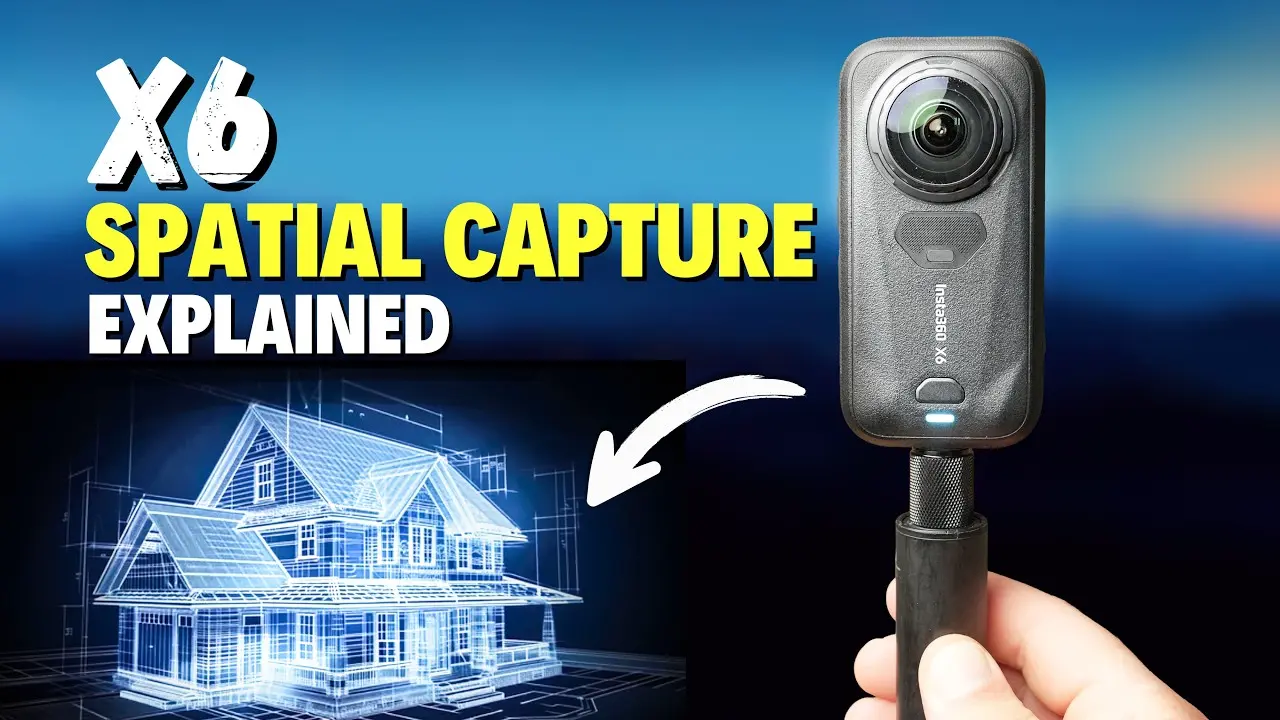
Creator: MountMedia · Published: 2026-08-23 · Length: 5:25 · Watch on YouTube
Detailed outline
[0:00] Introduction to Spatial Capture
- Spatial Capture called one of the truly unique new features of the Insta360 X6 and the Insta360 app.
- Use it to build a 3D model of a large object, a room, or a space (e.g. a garden), then move and look around inside it — useful for virtual tours and a new way to preserve memories.
- Also works on the X5 and X4 Air; app and camera firmware must be up to date.
- Tech basis: 3D Gaussian Splatting — efficiently turns videos/photos into 3D models; previously needed specialized software; with Spatial Capture + X6 it is relatively simple.
[0:34] Recording requirements
- Start with a recording on the X6 in 360 Video mode; preferred settings: 8K at 30 fps.
- Pure Video mode also works.
- Must use the standard color profile — I-Log will not work.
- Clip length: 30 seconds to 2 minutes; must be uploaded to the cloud.
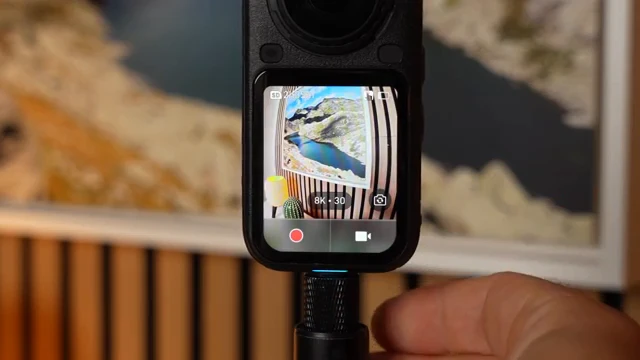
X6 touchscreen in 360 Video mode showing 8K · 30 recording settings before Spatial Capture.
[1:13] Tips for optimal capture
- Only suitable for static objects — not moving people or cars.
- Works better in good lighting; low light not recommended (even though Pure Video can help).
- Difficulty with different heights / multi-floor houses within the 2-minute limit — capture individual floor levels.
- Avoid large bright/dark lighting swings in the same scene.
- Decide the capture area first (example: part of a garden, not the whole garden).
[2:01] Techniques for scanning
- Hold the X6 on a selfie stick about half a meter above your head, lenses facing left and right.
- Indoors that may be too high — alternatively hold at chest height in front of you.
- Walk slowly through the area; keep the camera steady; no sudden movements.
- Move in circular patterns several times; vary height on repeat passes.
- For ceiling/floor: hold the X6 straight forward with lenses facing up and down.
- For a specific object in detail: circle it several times with the camera pointed at it.
- Everything must be in a single recording ≤ 2 minutes.
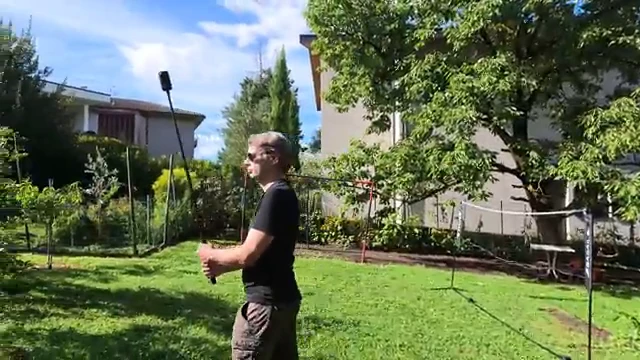
Outdoor garden scan: X6 on an extended selfie stick held above head height for Spatial Capture.
[2:55] Uploading and processing
- Upload to the cloud via automatic backup (e.g. when charging) or pick the clip in the camera album and tap Upload to the Cloud.
- In the Insta360 app: Album → Cloud → Spatial Capture → tap + / Create and select the clip.
- 3D rendering runs entirely in the cloud; no need to keep the app open; can take about an hour.
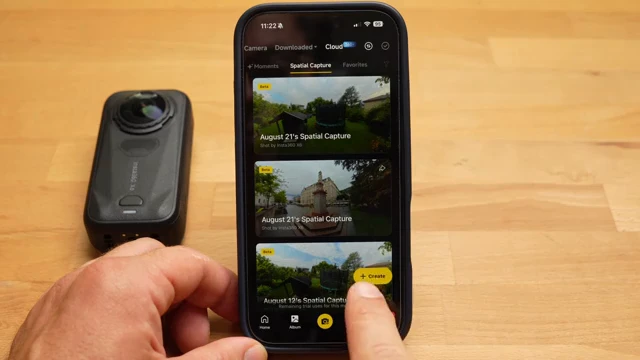
Insta360 app Cloud → Spatial Capture list (Beta) with + Create next to an X6 clip.
[3:33] Viewing and sharing models
- Open the finished model and move/look around inside it.
- Top-right: switch landscape vs portrait.
- Joystick mode — two control pads to move and look.
- Gyro mode — look around by tilting the phone.
- Extra views: Ripple and Particle — pre-made futuristic fly-throughs of the space.
- Sharing today: via a link that opens the model in a browser; same free look-around; on desktop navigate with keyboard + mouse like a video game.
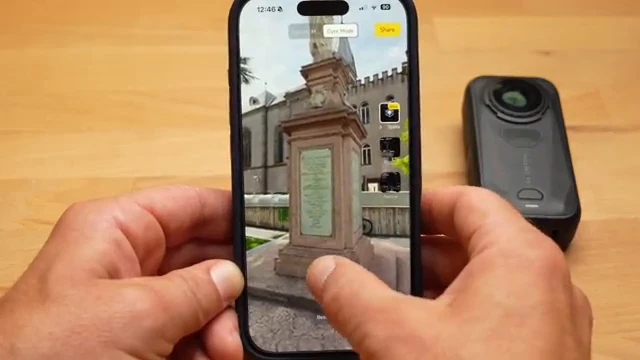
Spatial Capture viewer in the app — 3D plaza model with View Mode / Share and on-screen nav pads.
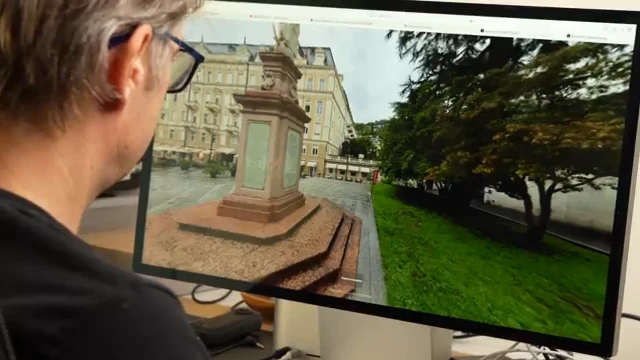
Same Spatial Capture model opened in a desktop browser for keyboard/mouse navigation.
[4:18] Limitations and offers
- Feature is still in beta and will improve; results can look pixelated / not super sharp yet.
- Clear structures (buildings, rooms) work better than lots of small detail (e.g. garden foliage).
- No extra editing features yet; not available in the U.S. yet for technical reasons.
- Requires a cloud subscription (uploads are mandatory).
- Limited-time affiliate offer via description link when buying the X6: Double Lens Kit (replace two damaged lenses) + 500GB free cloud storage for one year.
- CTA: comments/questions, like if helpful; more X6 videos coming soon.
Things mentioned
Cameras & hardware
- Insta360 X6 — primary demo camera for Spatial Capture
- Insta360 X5 — also supported
- Insta360 X4 Air — also supported
- Selfie stick / extension pole — recommended mounting (~0.5 m above head outdoors)
- Double Lens Kit — free with limited-time X6 affiliate offer (replacement lenses)
Software, modes & features
- Spatial Capture (Insta360 app / cloud) — beta 3D model creation from 360 video
- 3D Gaussian Splatting — underlying rendering technique
- 360 Video mode — preferred capture mode
- Pure Video mode — also usable
- Standard color profile (required) vs I-Log (unsupported)
- 8K / 30 fps — recommended recording settings
- Clip length window: 30 s – 2 min
- Automatic cloud backup and manual Upload to the Cloud on-camera
- App path: Album → Cloud → Spatial Capture → + Create
- Cloud 3D render (~1 hour); app need not stay open
- Viewer modes: joystick, gyro, landscape/portrait
- Cinematic views: Ripple, Particle
- Browser share link with desktop keyboard/mouse navigation
- Beta status; not available in the U.S. (technical reasons at time of upload)
Cloud / purchase / offers
- Insta360 cloud subscription required
- Affiliate X6 purchase link in description: FREE Lens Kit + 500GB cloud for 1 year (limited time; exclusive to that link)
- Micro SD card affiliate link (description)
- X6 accessories store link (stick, lens cap)
- Related MountMedia videos linked: Auto Edit features; Best Accessories
- Musicbed affiliate (14-day free trial)
Use cases called out
- Large objects, rooms, gardens / outdoor spaces
- Virtual tours and memory preservation
- Static scenes only (no moving people/cars)
- Single-floor / bounded areas preferred over multi-level buildings in one take
Biographies
MountMedia (channel)
Tech / action-camera YouTube channel (@MountMediaChannel) focused on Insta360 and competing 360/action cameras — settings guides, comparisons, and feature explainers. This upload is a practical Spatial Capture how-to for the X6/X5 generation, with affiliate links for X6 hardware and cloud storage.
Host (on-camera)
Unnamed on-camera presenter for MountMedia; demonstrates recording settings on the X6, outdoor garden and landscape scanning technique with a selfie stick, cloud upload, and in-app / browser viewing of finished Spatial Capture models. Socials listed: YouTube, Instagram (@mountmedia_channel), TikTok (@mountmedia_channel).
Insta360
Camera maker behind the X6, X5, and X4 Air, the Insta360 app, and the cloud Spatial Capture beta (3D Gaussian Splatting pipeline). Positions Spatial Capture as a simplified path from 360 video to navigable 3D models without desktop specialized software.